Synsa for computers
Your computer, in the Synsa app
Synsa’s program for computers is the computer side of the Terminal in the Synsa app. Install it on your own computer, connect your phone, and follow and run your AI coding sessions from wherever you are.
Download
For 64-bit Linux computers with an Intel or AMD processor. Open this page on that computer to download.
.deb for Ubuntu and Debian
Installs Synsa with your apps, and keeps the system’s app sandbox on.
Download .deb- SHA-256 of the AppImage
496c25c858f18e536e5c448e634705bc5eaf67a580ecac3db2169afa6cff4ba5- SHA-256 of the .deb
3e9adf03e7e9c450946f8ab9da18cf542c2826af1178cac83aa0f787464912cd
Both in one file: SHA256SUMS. How to check a download.
Contents 12 sections
What it does
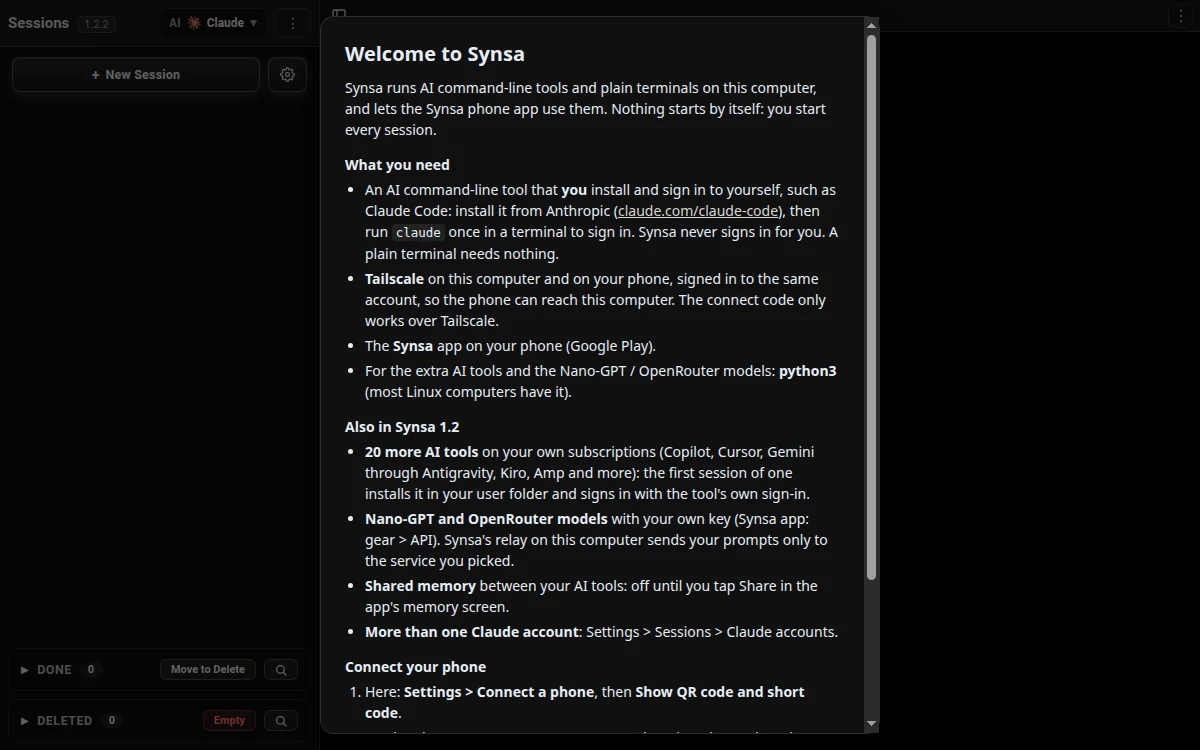
Synsa runs AI command-line tools, such as Claude Code, and plain terminals on your computer, and lets the Terminal in the Synsa app on your phone use them. From your phone you can start a session, follow what it’s doing, answer its questions and keep it going, and see every session at a glance: working, incomplete and completed.
- Nothing starts by itself. You start every session, on the computer or from your phone.
- The AI tool asks before it runs commands, as it normally does.
- Voice chat and read aloud in the Terminal come with your Synsa plan.
New in 1.2.3
Version 1.2.3 came out on .
- Suggested replies, one tap away. When a Claude Code session stops and asks you something, Synsa can have up to three replies ready above the message box in the app’s Terminal. Tap the button above the box to see them, and tap one to put it in the box. Change it if you like, then tap Send: nothing is sent until you do.
- Written by your own Claude plan, on your computer. Synsa asks Claude for them with the Claude Code sign-in that session runs on (Sonnet 5.5 by default), not through our servers, and we don’t charge for them. A conversation with text that looks like a password or a key is never sent.
- Off until you turn them on. They use a little of your Claude plan, so they start off, also after an update from an earlier version. Turn them on in the app’s Terminal: ⋮ › Preferences › “Suggested replies above the message box”.
Not yet for sessions on Nano‑GPT or OpenRouter models. Synsa asks for replies at most 100 times a day on each computer.
New in 1.2.2
Version 1.2.2 came out on .
- Ready for session alerts. When you turn on the bell for a session in the Synsa app, the alert goes from your computer straight to your phone and names your computer: the name you gave it in the app, or “Your computer”, never its address.
- Sessions without a bell aren’t checked. In 1.2.0 and 1.2.1, Synsa’s log on your computer got a line, with the start of the AI’s answer, each time a session without a bell finished or needed you. Now it doesn’t, and when an alert is sent, the log names the session but not the AI’s words.
New in 1.2.1
Version 1.2.1 came out on .
- Model names now match Claude Code’s own list everywhere: Opus 5.5, Sonnet 5.5, Haiku 5.5 and Fable 5.2.
- Rename no longer offers “Keep this name”. Synsa never renames your sessions by itself.
New in 1.2.0
- 20 more AI tools, on your own subscriptions. Copilot, Cursor, Gemini (through Google’s Antigravity), Kiro, Amp, Droid, Kimi Code, OpenCode, Cline, Kilo Code, Mistral Vibe, Hermes Agent, Pi, GLM Coding Plan, Qwen Code, MiniMax Code, MiMo Code, Step Code, Muse Code and Tencent Hy. The first session of a tool installs it in your own user folder (never with sudo), using the maker’s own installer, and you sign in with that tool’s own sign-in: a link or code shown in the session, or a plan key you paste, which stays on your computer. Those installers come straight from the makers’ sites, which publish no checksums for them, so they can’t be checked the way you can check Synsa’s own download.
- Nano‑GPT and OpenRouter models. Connect your own OpenRouter or Nano‑GPT account, or paste your own key, in the Synsa app (the Terminal’s gear › API), and run Claude Code on any model those services list. A small relay inside Synsa, on your computer only, sends your prompts straight to the service you picked, with your key. OpenRouter requests ask for providers that keep no data. You pay the service directly.
- Shared memory between your AI tools. Off until you turn on Share for a tool in the app’s memory screen. Then Synsa adds a clearly marked block to that tool’s own instruction file (for example Codex’s AGENTS.md) and keeps the notes in its own folder; turning it off takes the block out again. Your own text is never changed.
- More than one Claude account. Add an account in the app or in Settings › Sessions › Claude accounts: Synsa opens a session where Claude Code’s own /login signs it in. Pick the account per session or for new sessions, and switch a running session to another account.
What you need
- A Linux computer (x64): Ubuntu, Debian, Mint, Fedora or similar, 64-bit with an Intel or AMD processor.
- Tailscale on this computer and on your phone, signed in to the same Tailscale account (tailscale.com/download). Your phone reaches your computer through it, and the connect code works only over Tailscale.
- The Synsa app on your Android phone, from Google Play.
- At least one AI tool you sign in to yourself: Claude Code (claude.com/claude-code), Gemini, Grok, Codex, or one of the 20 subscription tools Synsa can set up for you, or a Nano‑GPT or OpenRouter key of your own. Synsa never signs in for you. A plain terminal needs nothing.
- python3, for the subscription tools and the Nano‑GPT / OpenRouter models. Most Linux computers already have it; the .deb installs it with the program when it’s missing.
Install it
The AppImage
In a terminal, in the folder you downloaded it to:
chmod +x Synsa-1.2.3-x86_64.AppImage
./Synsa-1.2.3-x86_64.AppImage
No install and no administrator password. If it doesn’t open, your system may be missing FUSE 2, which AppImages use: on Ubuntu 24.04 and later run sudo apt install libfuse2t64, on Ubuntu 22.04 sudo apt install libfuse2, then try again.
The .deb (Ubuntu and Debian)
sudo apt install ./Synsa-1.2.3-amd64.debThen open Synsa from your apps, or type synsa in a terminal. To remove it: sudo apt remove synsa-desktop.
Check a download
Put the file and SHA256SUMS in the same folder and run sha256sum -c SHA256SUMS: your file should say OK. Or run sha256sum with the file’s name and compare the result with the SHA-256 under Download.
New versions
Once a day Synsa asks synsa.com whether a new version is out, and if one is, it says so at the top of its window. It never downloads or installs anything by itself: get the new version from this page.
Connect your phone
Do this once. Turn on Tailscale on both first.
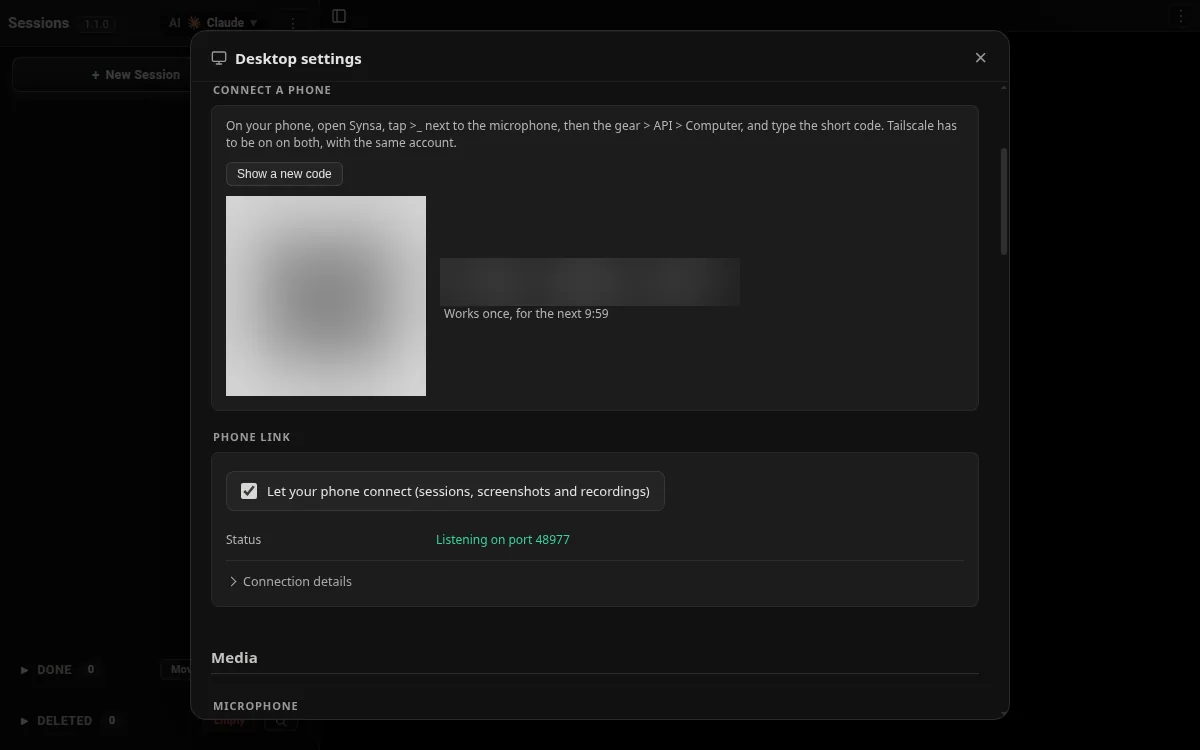
- On the computer, open Synsa and go to Settings › Connect a phone, then press Show QR code and short code.
- On your phone, open Synsa and tap >_ next to the microphone. That opens the Terminal.
- Tap the gear, then API › Computer, type the short code and tap Connect.
- Your computer’s sessions show up on the phone. Tap New Session to start one, or tap a session to open it.
A code works once, for 10 minutes. After that your phone remembers the computer, so you don’t need a code again.
If your phone can’t connect
- Tailscale is on, on both. Open Tailscale on the phone and on the computer and check both are connected, and signed in to the same Tailscale account.
- Synsa is open on the computer, and the computer is awake.
- Use a new code. A code works once and only for 10 minutes. On the computer, press Show a new code and type the new one.
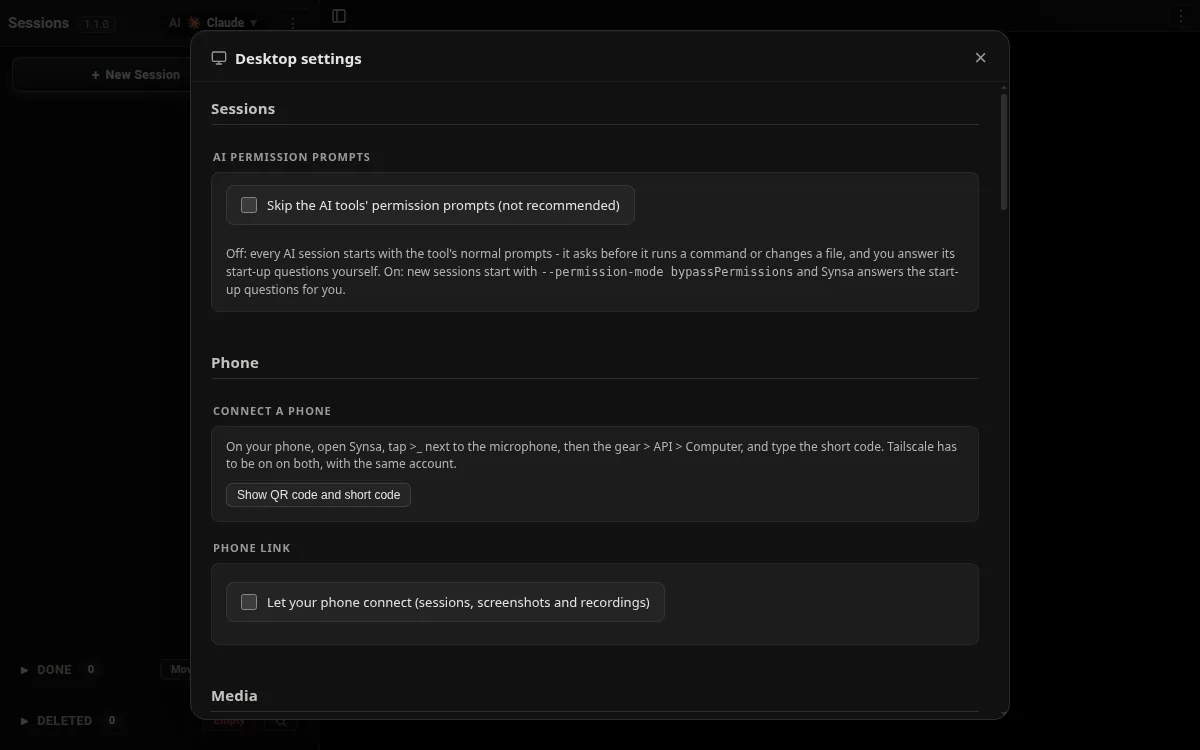
- Phone access is on. On a new install it stays off until you press Connect a phone. If you turned off Let your phone connect in the computer’s Settings › Phone link, turn it back on.
Still stuck? See Support. It helps to say which Linux you use and what the phone showed.
Privacy and safety
- Straight to your computer. What you type in the Terminal and the files you send go from your phone straight to your computer, encrypted, not through us. The Terminal’s voice chat, mic and read aloud work like the rest of the app’s voice features: through our server, on your Synsa plan. Our Privacy Policy has the details.
- Only your phone. Only a phone you connected with a code can use the program.
- The AI tool asks first. It asks before it runs commands or changes files, as it normally does. Settings › Sessions has a switch to skip those prompts. It’s off, and we don’t recommend turning it on.
- Your computer, your accounts. The commands and AI tools run under your own accounts, on their makers’ terms. Our Terms say more.
Windows and Mac
Synsa for Windows and Mac comes later. When it’s ready, it will be on this page.
Licences
Synsa includes open-source software under its own licences. The list is in the program, under Help › Open-source licences (press Alt to show the menu bar), and in the file THIRD-PARTY-LICENSES.txt that comes with it.
Synsa is independent. It isn’t affiliated with or endorsed by Anthropic, Tailscale or the other makers of the tools named here.